
Google Business Profile video verification should show where the business operates, that it exists and that you are authorized to manage it. Prepare a continuous route that demonstrates those points for your actual storefront or service-area operation. Use the method offered in the profile and address any stated gaps before another submission.
For an Oakville store moving premises, the camera route needs to explain the new real location. A contractor working at customer properties needs to demonstrate a different arrangement. The same generic tour will not explain both businesses well.
Check the offered method and the information first
Open the profile using the authorized account and inspect its verification request. Check the business name, address arrangement and operating model before planning evidence. Google’s verification guidance explains that available methods depend on the business and information involved.
If the premises recently changed, use the address-change checklist to align the current website and customer instructions. Record the actual operation rather than filming the old location or changing unrelated fields to try to obtain a different method.
Prepare the essential recording conditions
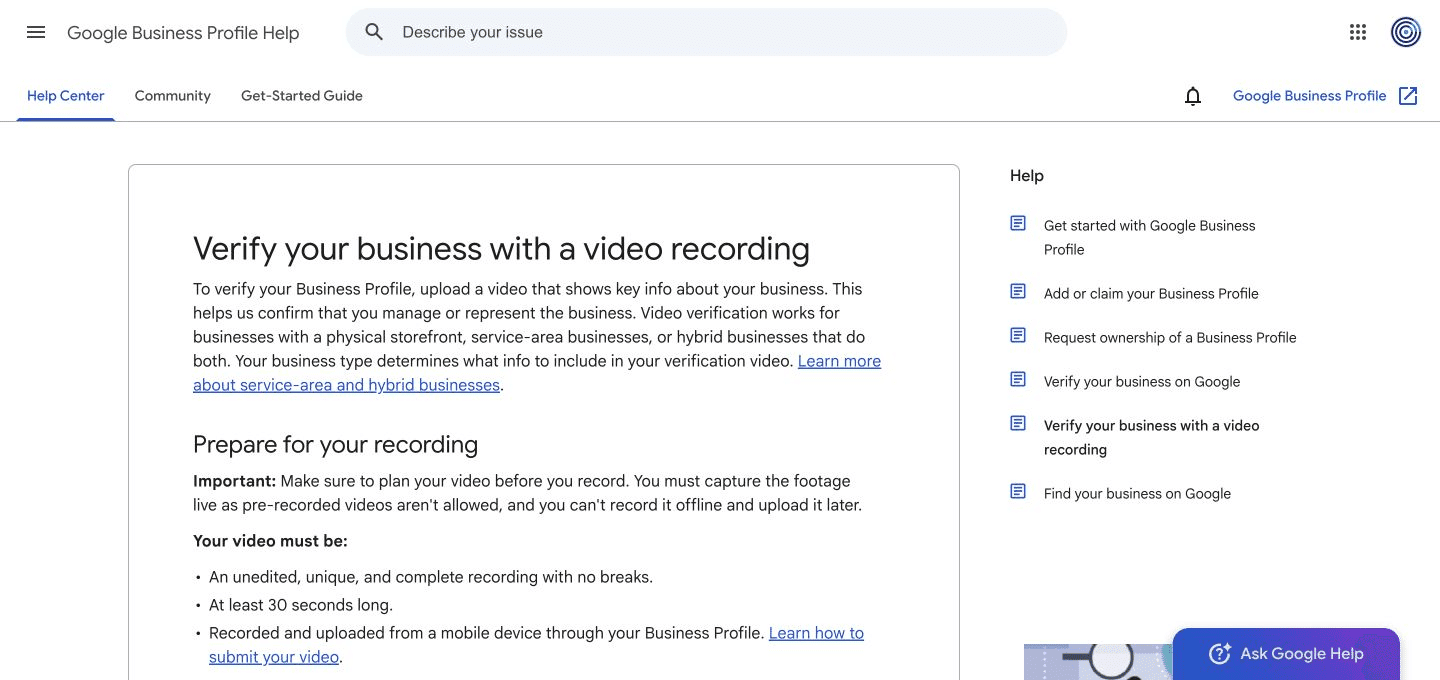
Google’s video requirements specify a live, unedited, continuous recording of at least 30 seconds, recorded and uploaded from a mobile device through the Business Profile process. Keep private information, sensitive identifiers and other people’s faces out of the route.
Prepare access, keys and relevant equipment before starting. Check that the required identifying details will be readable. This is an evidence task, so a polished promotional edit would defeat the purpose.
A practical route for a storefront
Plan the route around three evidence stops:
| Stop | What the camera needs to establish | Prepare before recording |
|---|---|---|
| Outside the premises | Where this business is located | Readable street/building context and the correct premises |
| The business itself | The operation and matching permanent business identity | Relevant signage and a clear view of the real setting |
| Controlled access | Your management or employee access | An appropriate business-only area or system you are authorized to access |
Walk the route without recording first. An entrance may be easy to recognize in person but poorly lit on a phone. A required door may be locked, or the only view of a sign may include people waiting nearby. Resolve those practical obstacles before the continuous recording begins.
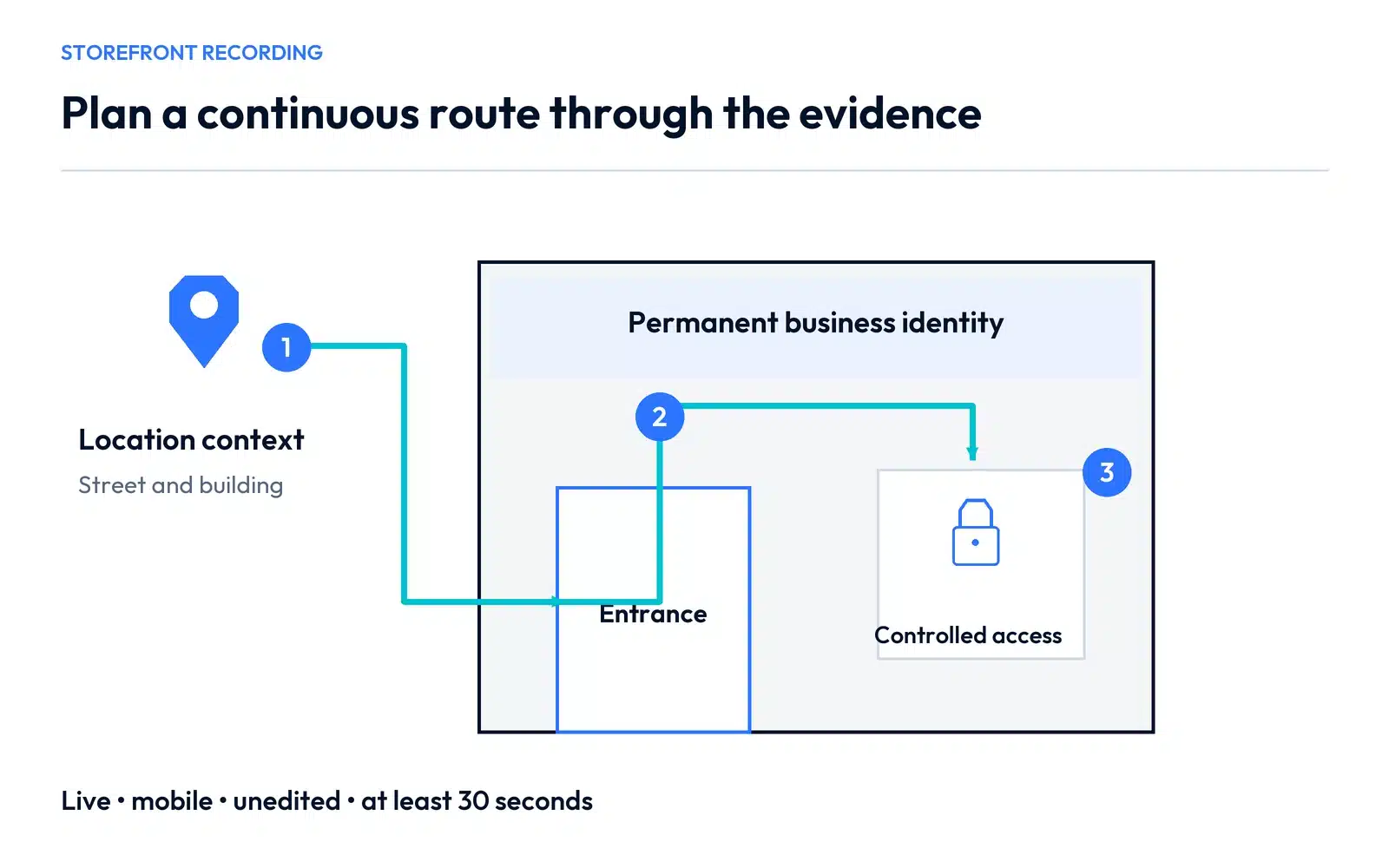
A store in a shared property should make the transition from the outside context to the correct unit understandable. The camera should not leave a reviewer guessing which business in the building is being represented.
A different route for a contractor
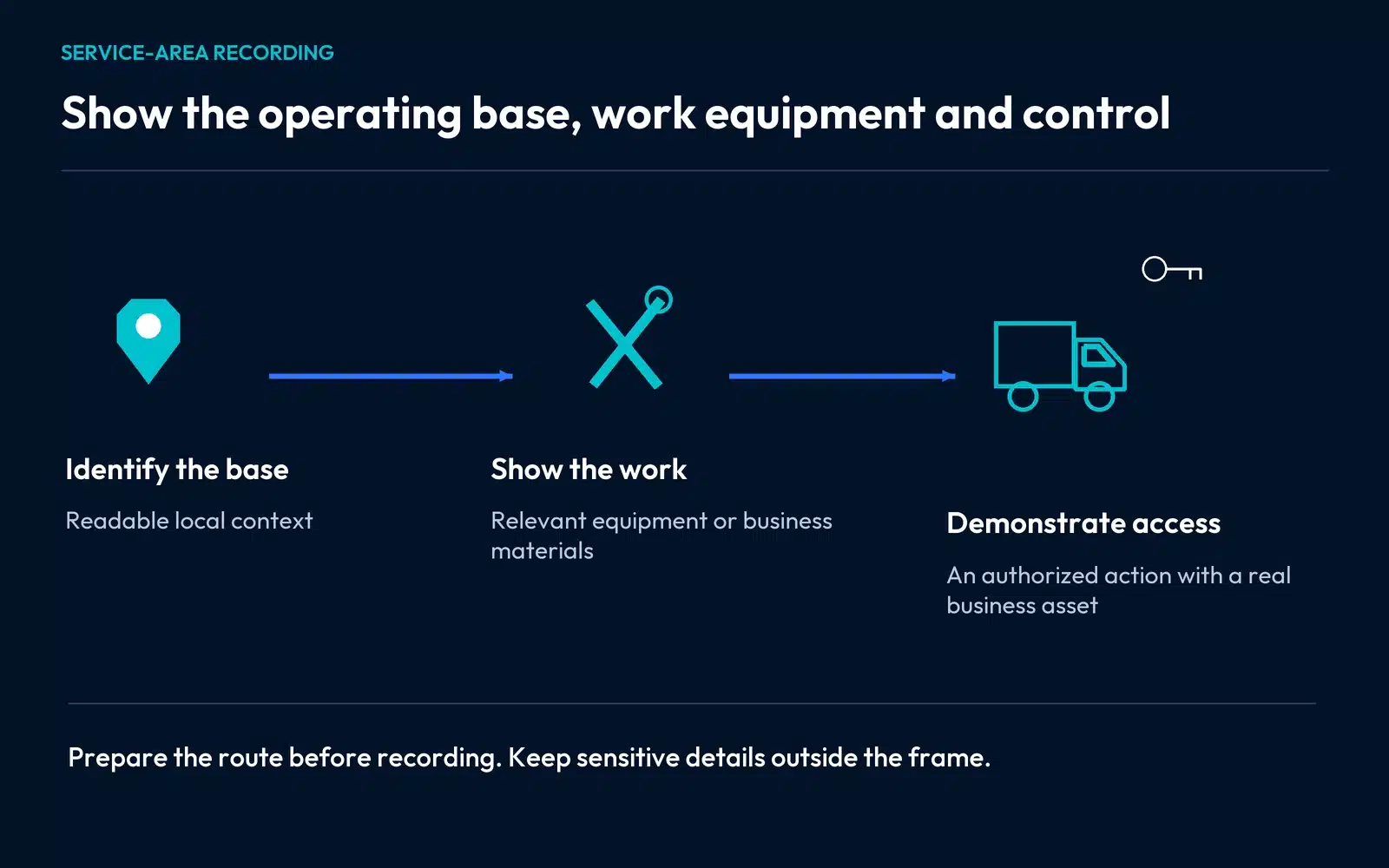
For a service-area operation, show the real operating location and the equipment or other evidence of the service, then demonstrate authorized access to business assets. Google’s guidance gives examples including professional tools, branded materials and access to a business vehicle.
A useful preparation sequence is to identify the base, make the relevant work equipment accessible and arrange a management-evidence action that can be shown clearly. Check the actual route on the phone. A residential exterior on its own explains little about the work performed from that base.
The service-area guide helps distinguish this arrangement from a walk-in storefront. Evidence should describe the operation you run, including appropriate public address representation.
Record, review and upload through the offered workflow
When the Business video method is offered, the current workflow takes you through the requirements, recording, review and upload. Follow the prompts in the profile. Before uploading, check that the recording includes every planned evidence stop and remains understandable throughout.
Use Google’s page to check the current controls and permitted evidence. Keep the recording in the supported workflow rather than producing a separate edited file for later upload.
If the video is rejected, answer the stated issue
Open the rejection details and use the available review-issues step. Match each stated omission to the recording:
- If the business identity was unclear, identify where the required matching details should be visible.
- If the location context was missing, revise the outside-to-business route.
- If authorization was not demonstrated, choose an appropriate access action you can genuinely perform.
The next recording should contain the original required evidence plus the missing elements. Repeating the same route without addressing the stated problem gives the reviewer little new information.
If no further method is available
Save the exact message, profile identifier and existing submission or support reference. Use the support route offered for that situation and explain the actual arrangement, method attempted and issue shown.
Keep verification distinct from suspension. If the account displays a restriction, the appropriate process may be an appeal rather than another recording. If the verified profile opens normally but is absent from one service search, start with the Maps visibility diagnostic.
Our Oakville SEO services can review how the profile, service-area information and website represent the business. Contact SERP Radius with the displayed request and operating model so we can identify the work needed around Google Business Profile video verification.