
Business not showing on Google Maps? A profile missing from a broad service search may have a different problem from a listing that cannot be found by its exact name. Establish whether the listing is unavailable or simply not competing well for the search you tested.
This distinction determines whether your next step is account troubleshooting, profile correction or local SEO work.
Start with an exact business-name search
Search for the business name with the correct town or address. Check that the result belongs to the right location. Then sign in to the account that manages the profile and review its available controls and notices.
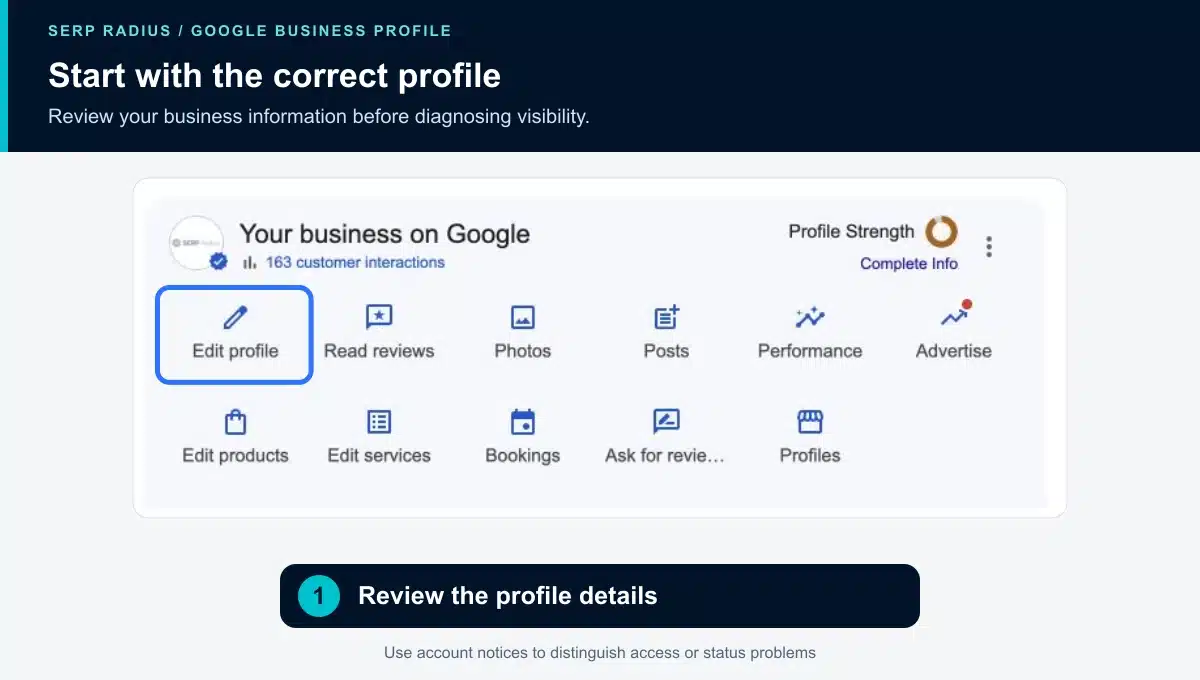
Confirm the correct profile before editing information or creating another listing.
If you manage several businesses, switching to the correct Google account may resolve an apparent access problem. Access to an account and visibility to customers are separate checks.
Read any verification or restriction notice
A profile may need verification, have a pending change or display a restriction requiring a specific response. Follow the notice that applies to the actual profile. Do not infer suspension from a weak position in a broad search.
Keep a record of the business name, profile link, displayed status and recent changes. That evidence makes a support request more precise. Avoid creating a replacement profile merely because the original is difficult to find; investigate the existing listing first.
Check the business information customers rely on
Review the name, primary category, phone number, website and hours. Where relevant, confirm the address or service-area configuration accurately reflects how the business operates.
The primary category should describe the actual business. Additional categories should reflect genuine activities. A list of loosely related categories can make the profile less useful to customers.
If you recently moved, use the Business Profile address-change checklist to review the old and new information together. Do not make unrelated changes while investigating a specific visibility issue.
If the listing exists, investigate competitive visibility
Google’s local results consider relevance, distance and prominence. A profile can be available for its name without appearing prominently for every service query or from every search location.
Record the exact query and the searcher’s approximate area. Compare results for the services you actually offer. One search from your own device is too narrow a basis for describing visibility across the whole GTA.
Look for concrete gaps: an inaccurate category, unclear service information, an unsuitable website destination or weak supporting information about the business. Keep website organic rankings separate from Maps placement when reviewing results.
Review the website destination
Open the profile’s website link on a phone. Check that it reaches the correct business and a page suited to the customer’s next decision.
A profile can attract attention while the website loses the enquiry through unclear service information or a broken form. Test the entire route before deciding that the answer is more profile activity.
Choose the next action from the evidence
| Situation | Appropriate next step |
|---|---|
| A verification or restriction notice appears | Follow the account-specific process and retain the supporting evidence. |
| Another account manages the profile | Resolve access through the existing ownership process. |
| The profile appears for its name but has weak service-query visibility | Review local relevance, competition and the website destination. |
| Business information is outdated | Correct the specific inaccuracy and monitor the resulting status. |
If you want help assessing competitive visibility and the enquiry journey, request a local SEO consultation. SERP Radius can identify which changes have a clear business purpose before you expand the campaign.
For account-specific troubleshooting, start with Google’s guidance on finding your business on Google.