

To submit a sitemap to Google, open the Search Console property that covers your website, add the sitemap URL and check whether Google can read it. A successful submission confirms the discovery file is accessible. It does not establish that every listed page has been indexed.
Before submitting anything, identify the sitemap your website actually generates and check whether it is already listed.
Find the sitemap your website maintains
Check your CMS or SEO plugin configuration and open the sitemap in a browser. Some websites use a sitemap index that points to several separate sitemap files.
Review a sample of the listed URLs. They should represent the public pages you intend customers to discover. If retired addresses, staging pages or unexpected duplicates appear, investigate the generation settings before submitting more files.
Avoid maintaining a separate manual list without an owner. The discovery file needs to stay aligned with the website as pages are published or moved.
Open the correct Search Console property
Confirm that the selected property covers the sitemap’s hostname and protocol. Open Sitemaps under Indexing, then review Submitted sitemaps for an existing entry.
If the current sitemap is already present, inspect its status before adding it again. A redesign does not automatically mean you need another submission of the same working file.
Enter the sitemap URL
In the Add a new sitemap field, enter the sitemap address as required by the selected property and interface. The example shows a complete URL in a domain property.
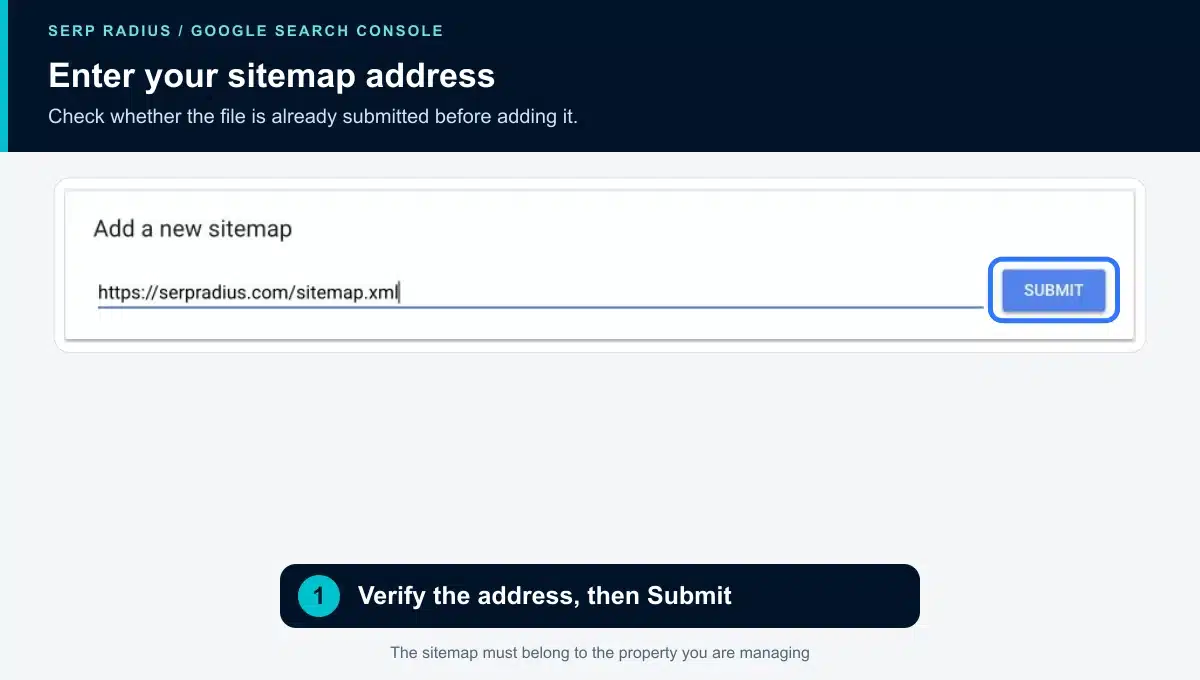
Use the actual sitemap URL from your own website. Check existing submissions first.
After verifying the address, select Submit. Return to the report to review the status and available processing information.
Interpret the status carefully
| What the report indicates | What to check |
|---|---|
| Success | Review the discovered URLs and inspect important pages separately. |
| A fetch problem | Open the exact sitemap URL and check access, response behaviour and availability. |
| A parsing or format issue | Investigate the generated file rather than changing unrelated page content. |
| Unexpected URL counts | Compare sitemap coverage with the pages you intend to publish. |
A discovered-page count describes the report’s discovery information. Keep it separate from the number of indexed pages and the number producing useful search visits.
Keep sitemaps and internal links working together
Important pages should also have relevant links from within the website. A service page buried outside the navigation needs a sensible discovery path for customers as well as search engines.
After adding a new service or location page, check its inclusion in the appropriate sitemap and link it from a relevant existing page. Do not turn submission into a substitute for clear site structure.
Inspect important pages after a repair or launch
Use URL Inspection to check an individual page’s indexing status. If a page is excluded, investigate its actual status rather than assuming another sitemap submission will resolve it.
For migration planning, use our website redesign SEO checklist. It connects URL mapping and launch checks with the follow-up work in Search Console.
If your sitemap includes unexpected pages or important URLs remain difficult to diagnose, request a technical SEO consultation. SERP Radius can review discovery, indexing signals and the website structure together.
For submission status and errors, see Google’s Sitemaps report documentation.