

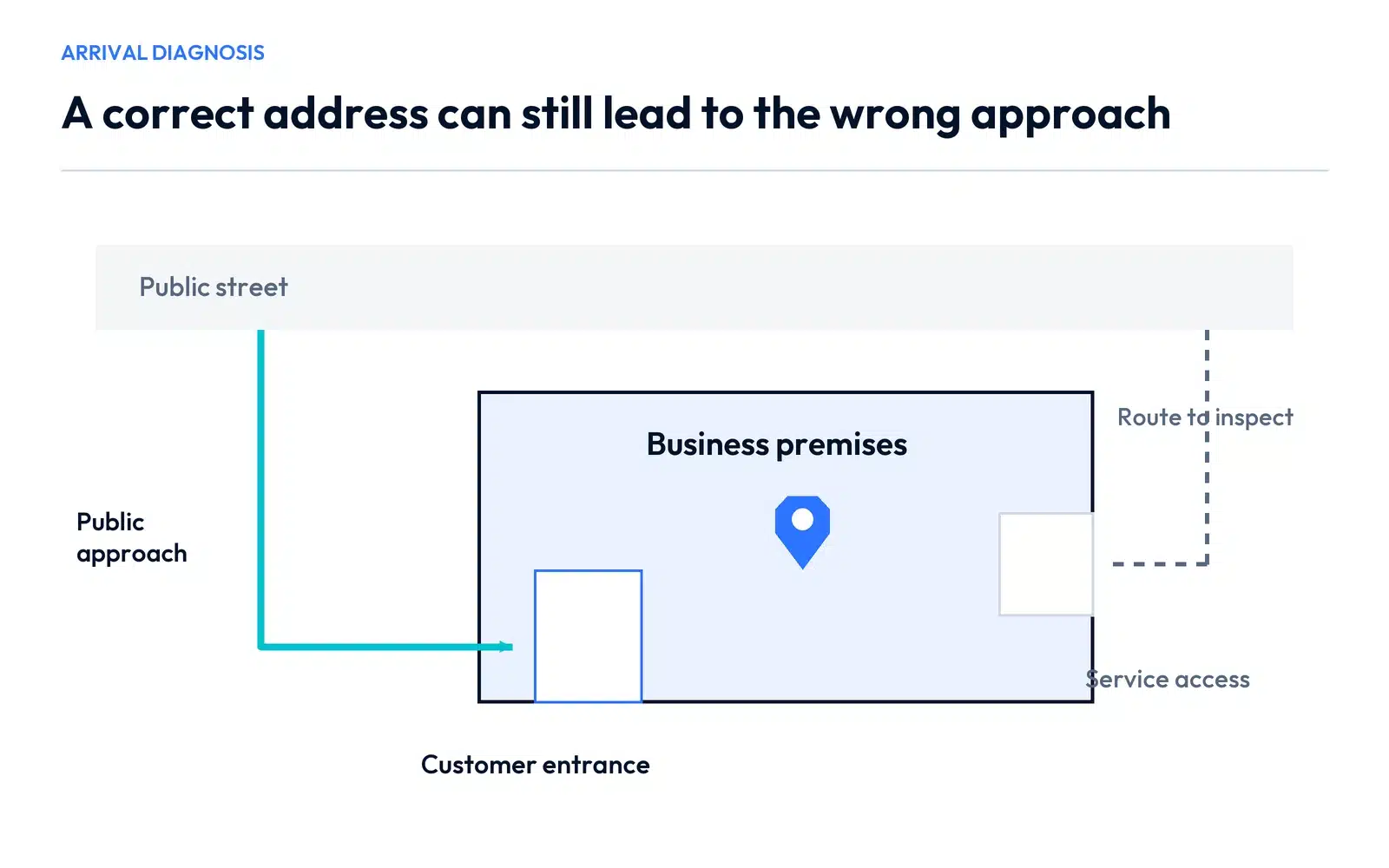
A Google Maps wrong business address problem can involve address text, a business marker, road information or directions to the entrance. Identify the incorrect record first, then use its correction path. An accurate street address should not be replaced just because the navigation route reaches an unsuitable side of the property.
For a Hamilton or Oakville business in a shared building, correct unit and entrance information can be as important to a first visit as the map marker.
Reproduce what the customer followed
Ask for the destination link and the part of the arrival that failed. Check the business name, phone, website and unit shown in that record. Then compare the destination marker with the actual property and entrance.
Check the website and appointment message too. A customer may have followed an old embedded map rather than the current public profile. Correcting the profile will not repair a saved link in a booking provider’s confirmation.
Choose between address, marker and directions
| Problem you can verify | Record to inspect | First action |
|---|---|---|
| Incorrect street or unit in the business details | Business Profile location information | Correct the supported address |
| Address is accurate but marker identifies the wrong place | Business location map adjustment | Adjust the marker using the profile’s location controls |
| Correct destination, unusable approach | Driving directions | Report the incorrect route step through Maps |
| Wrong street or underlying address data | Maps road/address data | Use the relevant Maps data-correction route |
| Two records send customers to different businesses | Public entity relationship | Compare identities before requesting a merge |
Google’s address and marker guidance and Maps data-error guide cover different parts of this problem.
Correct a business address or marker
In the authorized Business Profile, use Edit profile, Location and Business location. Correct the address details where needed and save. For a marker adjustment, use Adjust, position it at the actual business location, then finish and save.
Keep unit or suite information accurate. Respond to any verification request and review the edit status. The saved management value and the published result can differ while a change is processing.
If customers do not receive service at your base, check the service-area arrangement rather than exposing a private address to improve the appearance of a pin.
Report a route problem at the route level
For supported regions, Google’s wrong-directions workflow uses a computer. Recreate the start and destination, open the affected route and its details, then use the product-feedback option to flag the incorrect step and submit the problem type.
The useful explanation identifies the failing approach: for example, a destination reached through an inaccessible service entrance instead of the public access route. Include the actual route and supported facts rather than changing the business address to force a different journey.
A road-data error needs its own Maps correction. Keep that separate from the business name, phone or unit information.
Explain arrival on the website
If customers need a particular entrance, give them a readable instruction beside the address and booking action. A useful arrival module has four elements:
Finding the premises
Use the signed customer entrance for the correct unit. Check the entrance photo before travelling. The map link opens the business destination. If you reach a restricted service entrance, contact the team for the public approach.
Replace that wording with the real entrance, unit and instructions. Use a current permitted photo of the actual arrival point. Do not put cross-street directions into an official postal address simply because they are useful on the contact page.

For a clinic in a shared building, this can prevent uncertainty after a customer reaches the property. For a store, it can distinguish the collection entrance from a loading area. The right wording comes from how the premises operate.
Handle a genuine relocation separately
If the business has moved, coordinate the profile, website, important third-party records and customer messages using the address-change checklist. A move requires a broader handoff than correcting one marker.
If two public records are involved, establish whether they represent the same operation before requesting any consolidation. Shared premises alone do not establish that two businesses are duplicates.
Verify the route after processing
Open the saved public destination and review the address, marker and linked page. Test the arrival instructions from the customer’s point of view, using legitimate operating access. Check the booking confirmation and any website map link separately.
Keep a submitted correction distinct from a confirmed public change. If only the route remains wrong, continue with that record instead of repeatedly editing accurate business details.
Our Hamilton SEO services and Oakville SEO services can review the profile and website arrival journey. Contact SERP Radius with the destination link and what the customer followed so we can identify the correct scope for a Google Maps wrong business address issue.