
A Google review QR code gives customers a scannable route to your business’s review form. Google currently provides a way to download one through your Business Profile, so a paid QR-code subscription is not required simply to create the code.
The useful work is checking that it opens the correct business, prints clearly and sits alongside a straightforward request for honest feedback.
Create the code through Google Business Profile
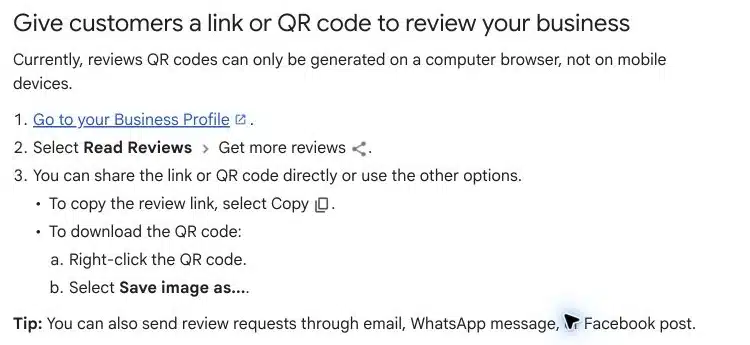
Google’s review-link and QR-code instructions currently specify using a computer browser. Open the correct Business Profile, choose Read Reviews, then Get more reviews. The sharing options include the review link and QR code. Google instructs users to save the displayed code image through the browser.
If you manage more than one location, confirm the selected profile before downloading. A code that scans successfully can still send customers to the wrong branch.
Test the destination before designing the sign
Our recommendation is to save the original image and immediately scan it with a phone. Check the business name and location presented. Continue far enough to understand the customer’s route without submitting a test review.
Repeat the check with another device if one is available. A review form may require the customer to sign in; the printed message should not suggest that scanning automatically submits a review.
Keep a simple record of the business profile, downloaded file and date tested. That makes it easier to maintain different signs for different locations.
A printable layout you can copy
The following is an illustrative sign layout, not a real client campaign:
How was your experience?
Scan to share an honest review on Google.
[Place the downloaded Google review QR image here.]
Thank you for your feedback.
Use the layout as a design instruction: replace the bracketed line with the image before printing. Keep the business identity visible so the customer can check the destination.
For a fictional clinic, the sign might sit at reception where someone can choose to scan it after an appointment. For a fictional home-service business, a follow-up message containing the direct review link may be more convenient than a printed card. Choose the format around the customer’s situation.
Printing checks that matter
Print one proof at the actual size before producing a batch. Scan it from the distance and angle a customer would use. Check it in the intended lighting and through any frame or protective cover.
Keep the code clear of decorative elements and avoid stretching, clipping or placing text across it. A high-contrast, uncluttered layout is easier to test than a heavily decorated one.
We recommend treating the printed proof as the acceptance test. A code that works on a large monitor does not establish that a smaller, covered or poorly lit version works in reception.
Ask for an honest review
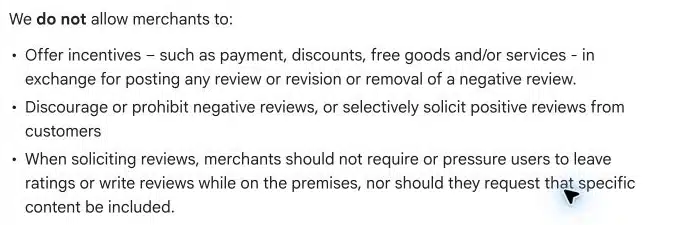
Google’s policies prohibit incentives for reviews. Request wording should also avoid selecting only customers expected to leave positive feedback. Use a consistent, neutral process for genuine customers. Google’s review guidance is the starting point for that process.
Suggested wording:
Thank you for choosing our business. If you would like to share your experience, you can leave an honest Google review using this link or QR code.
Avoid attaching discounts, gifts or a requested star rating. Do not create a form that sends happy customers to Google while diverting everyone else away from public review options.
What to do when the code does not work
Separate scanning from destination problems. If the camera cannot read the printed code, test the original downloaded image and reconsider the print layout. If it scans but opens the wrong business, return to the correct profile and replace the asset.
If the destination is correct but a customer cannot complete the review, record what actually happened. Do not assume the QR image caused a missing or delayed review. Our missing Google reviews guide covers that separate problem.
Does a review QR code improve rankings?
The code is a way to make a request accessible. It is not evidence of a ranking increase, and this guide does not claim a measured review campaign result. Evaluate whether the destination works and whether your request process is appropriate before drawing conclusions about outcomes.
For the wider role of reviews, see how reviews relate to local SEO. For help reviewing your business’s local search presence, explore SERP Radius’s local SEO service.
If you also need a clickable version for email, see how to get your Google review link.