
Your Google review link gives customers a direct route to leave feedback about your business. You can copy it from your Google Business Profile and include it in a thank-you email, a receipt or a follow-up message.
This guide shows how to find the review link for the correct business and confirm it copied successfully.
Before you start
Sign in to the Google account that manages your business. Search Google for your business name and check that the correct profile appears. If you manage several locations, confirm the business name and location before copying a review link.
The steps below use Get more reviews in the Reviews section of the business’s Google Search panel.
1. Find Get more reviews
Open your business on Google Search and look for the Reviews section. Select Get more reviews to open the sharing panel.
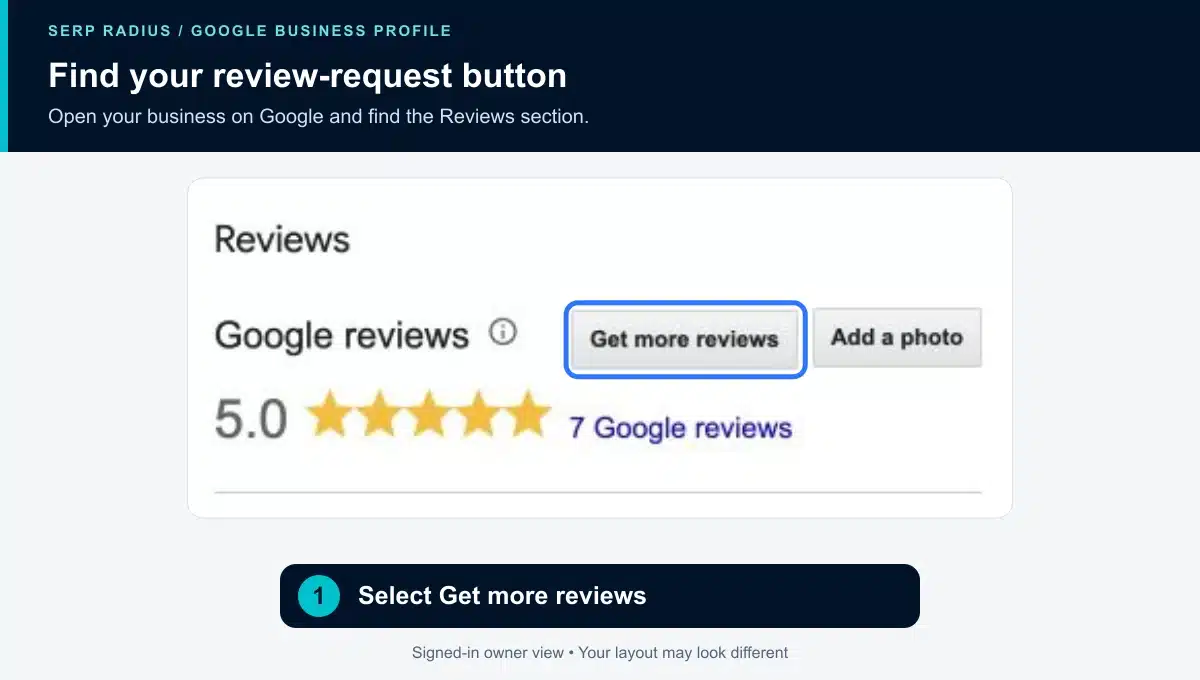
Some owner interfaces also show Ask for reviews among the management controls. Google’s help guide describes another route through Read reviews → Get more reviews. These labels and entry points can vary.
2. Copy the Google review link
In the Share panel, select Copy link beside the review URL. Use the link Google supplies in that panel. Copying the Google Search address from the browser bar would capture a different URL.
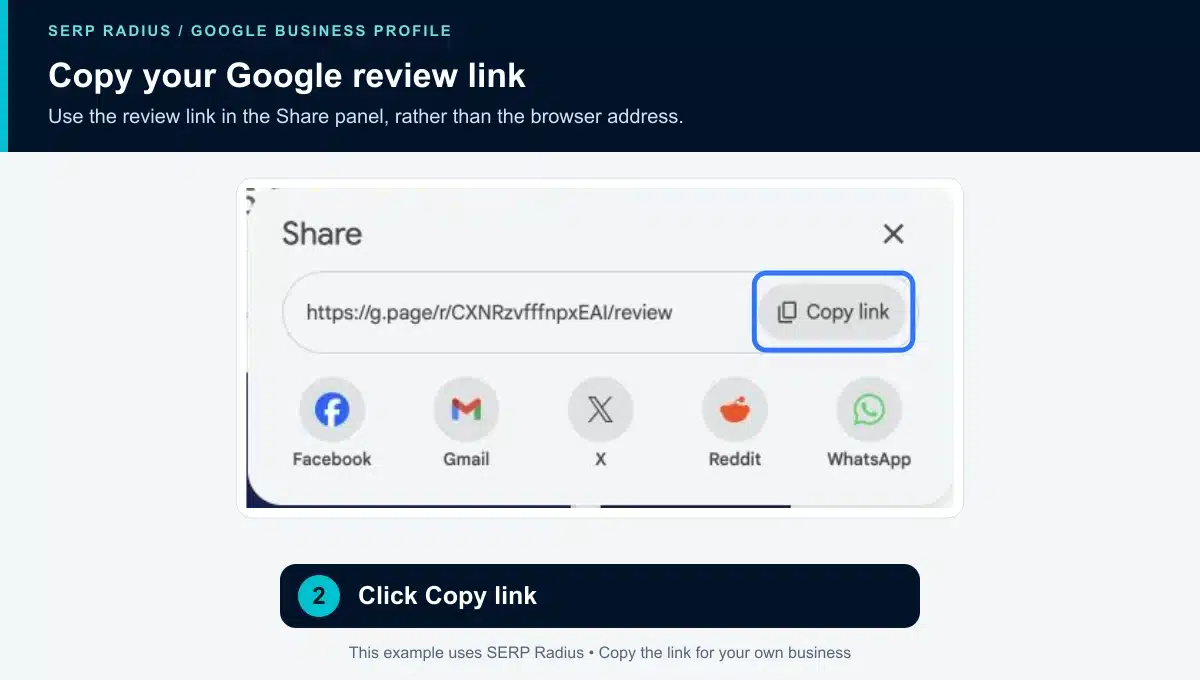
Copy the link for your own business. The URL shown here belongs to SERP Radius and is an example only.
3. Confirm that the link copied
Look for Link copied after selecting the button. That confirms the copy action succeeded.
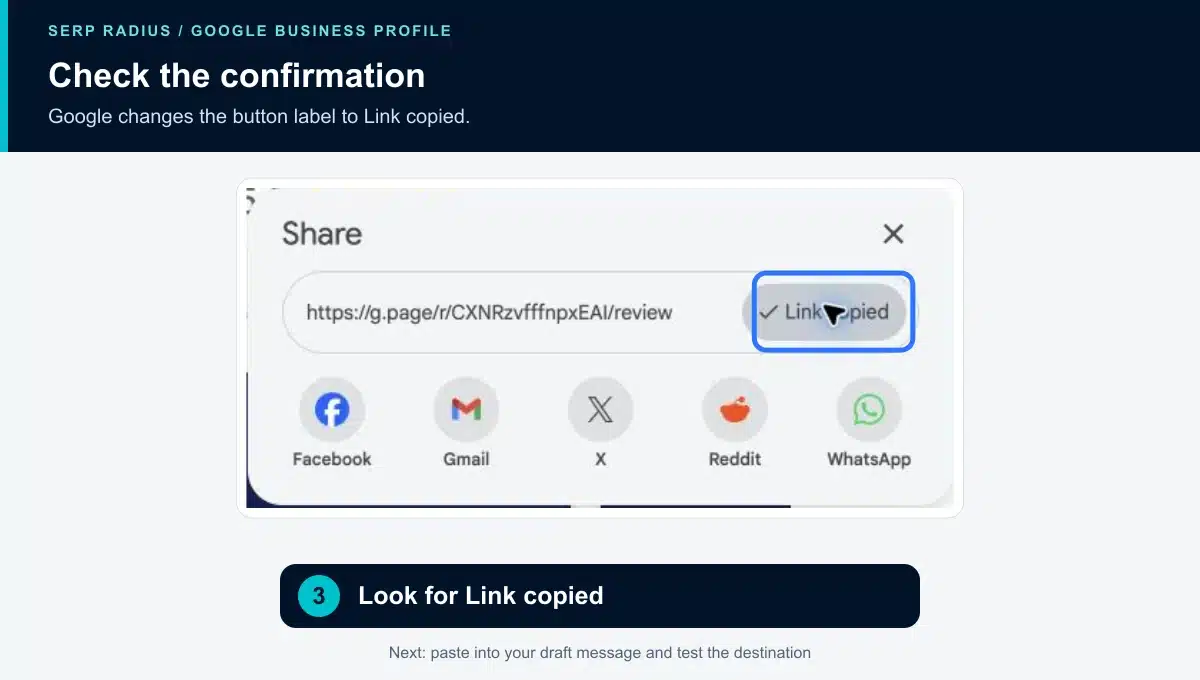
Paste the link into a draft message or a text editor. Then open it in a new tab and confirm it leads to the correct business before sending it to customers. Google may ask the customer to sign in before leaving a review. Testing the destination does not require submitting a review.
Where to use your review link
Choose a point in the customer journey where a request is relevant: a thank-you email after the service, a receipt, or the end of a genuine support conversation. Keep the request brief and give the customer a choice.
For example:
Thank you for choosing [Business name]. If you would like to share your experience, you can leave an honest Google review here: [Your review link]. Thank you for your feedback.
Ask for honest feedback without requesting a particular rating. Do not offer discounts, gifts or payments in exchange for reviews, or selectively ask only customers expected to leave positive feedback. These practices conflict with Google’s review policies.
Can you download a Google review QR code?
Google provides a desktop-browser QR-code option through its review-request controls. Where the QR code is displayed, use the available save option and test the destination on a phone before printing.
For a separate walkthrough covering creation, testing and print checks, read our Google review QR-code guide.
What if the review option does not appear?
First, confirm that you are signed into the account that manages the correct profile. Check the owner controls and the profile’s Reviews section for the available review-request option. If a panel opens blank, return to the profile and try another visible review-request entry point. The Reviews section may offer Get more reviews as another way to open the sharing controls.
If the options remain unavailable, consult Google Business Profile Help for the current workflow and any account-specific restrictions. A missing button alone does not establish why a profile has a problem.
Connect reviews with the rest of your local search presence
A review link makes it easier to request feedback. It does not resolve every local visibility problem. Your business information, website and enquiry journey also need to help prospective customers understand your services and take the next step.
Read our guide to how reviews affect SEO or explore local SEO services. If you want help assessing your business’s local search presence, contact SERP Radius.
For Google’s current instructions and review rules, see tips to get more reviews and prohibited and restricted content.