
To change holiday hours on Google, sign in to the account that manages your Business Profile and open Edit profile → Hours → Special hours. Choose the date, enter its opening and closing times or mark it closed, then save. Check the public listing afterwards.
A customer deciding whether to visit needs a reliable answer for that particular day. A correct weekly schedule can still give the wrong answer on Christmas Eve, Boxing Day or New Year’s Day.
This guide combines Google documentation with screenshots from SERP Radius’s own profile editor. The example dates and times were entered for demonstration and discarded. They are not our announced holiday schedule or a client case study.
Confirm the schedule before opening the editor
Start with a dated schedule approved by the person responsible for opening the business. For each location, record the date, customer-facing hours, any midday closure and who confirmed the information.
Check the surrounding days too. A shop might close early on December 24, close completely on December 25 and open later on December 26. Those are three separate decisions.
For multiple branches, get approval for each location. A mall’s opening arrangements may differ from those of a street-front store, even when both trade under the same name.
We recommend preparing the schedule several weeks ahead, then checking it again shortly before each affected date. This is a practical planning recommendation, not a Google deadline.
How to set Google Business Profile holiday hours
1. Open the profile you manage
Search for your business while signed in to its managing Google account. Find Your business on Google, then select Edit profile. Confirm the business name before editing, especially if your account manages several locations.
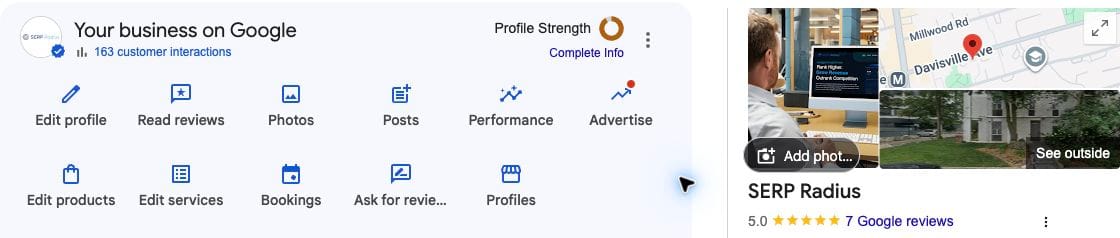
2. Find Special hours under Hours
Select the Hours tab in Business information and locate Special hours below the weekly schedule. Open its edit control or select Add, depending on the interface shown.
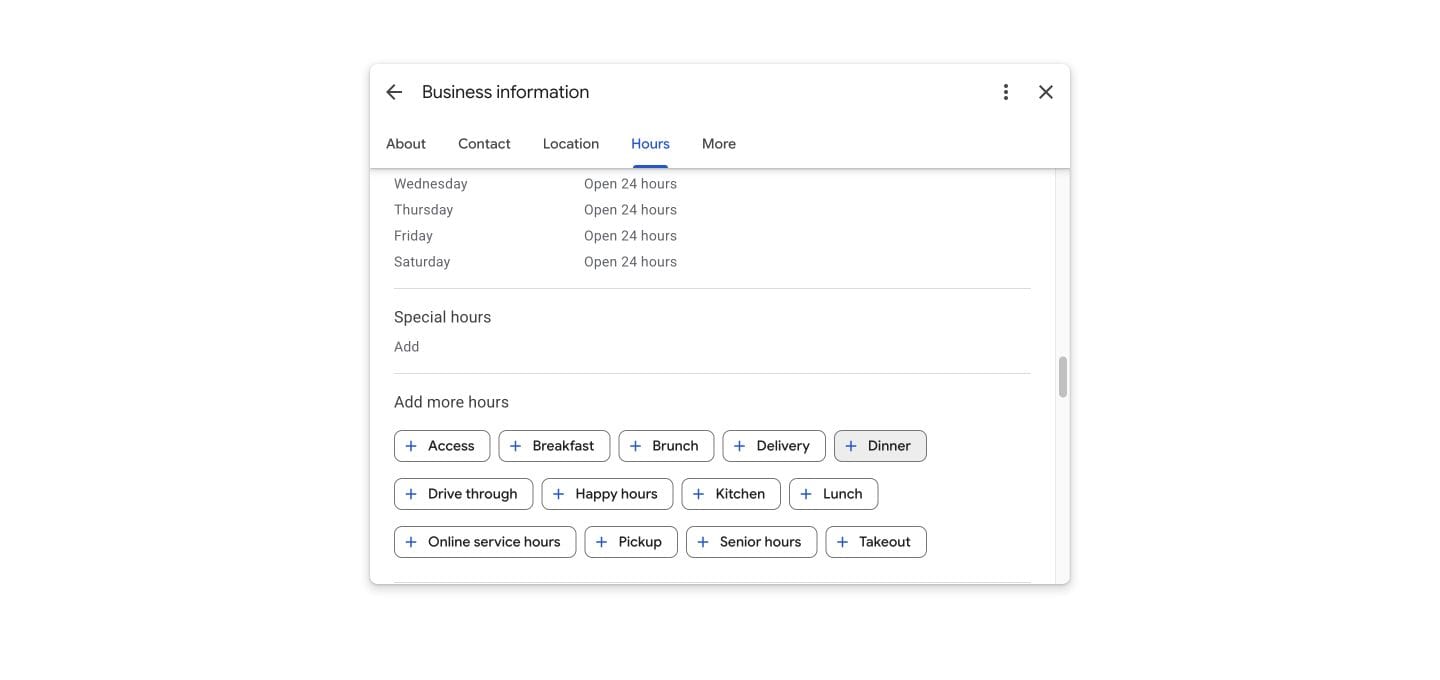
For a short holiday exception, leave the regular week intact. Main hours describe the normal week; Special hours describe selected dates. Google explains the distinction in its business-hours guidance.
3. Add or review the affected date
Select Add a date and check the year as well as the day and month. If Google suggests a relevant holiday, use its review option instead. Our captured profile showed Add a date without suggested holidays.
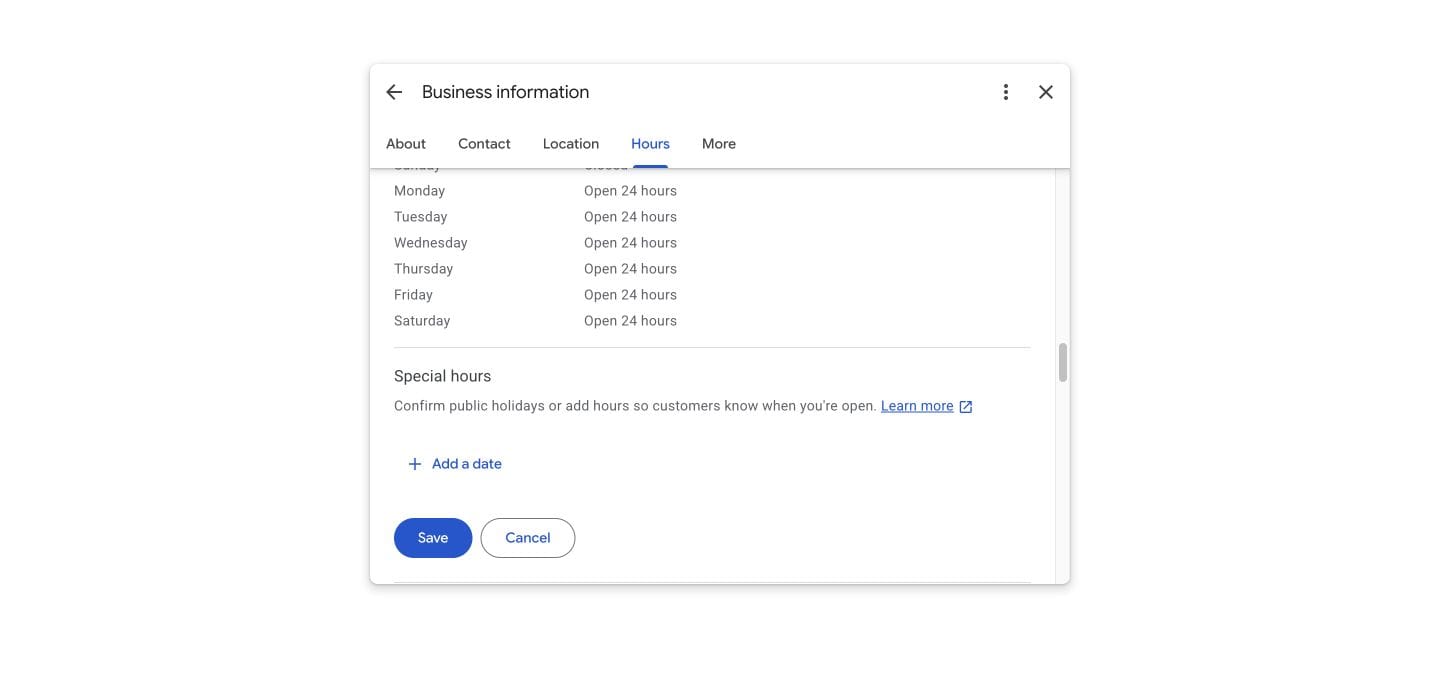
Confirm relevant official holidays even when the opening times stay the same. Google recommends this so customers can distinguish confirmed availability from an unreviewed regular schedule. You can also add a custom date when the business changes its hours for another reason.
4. Enter shorter hours or mark the date closed
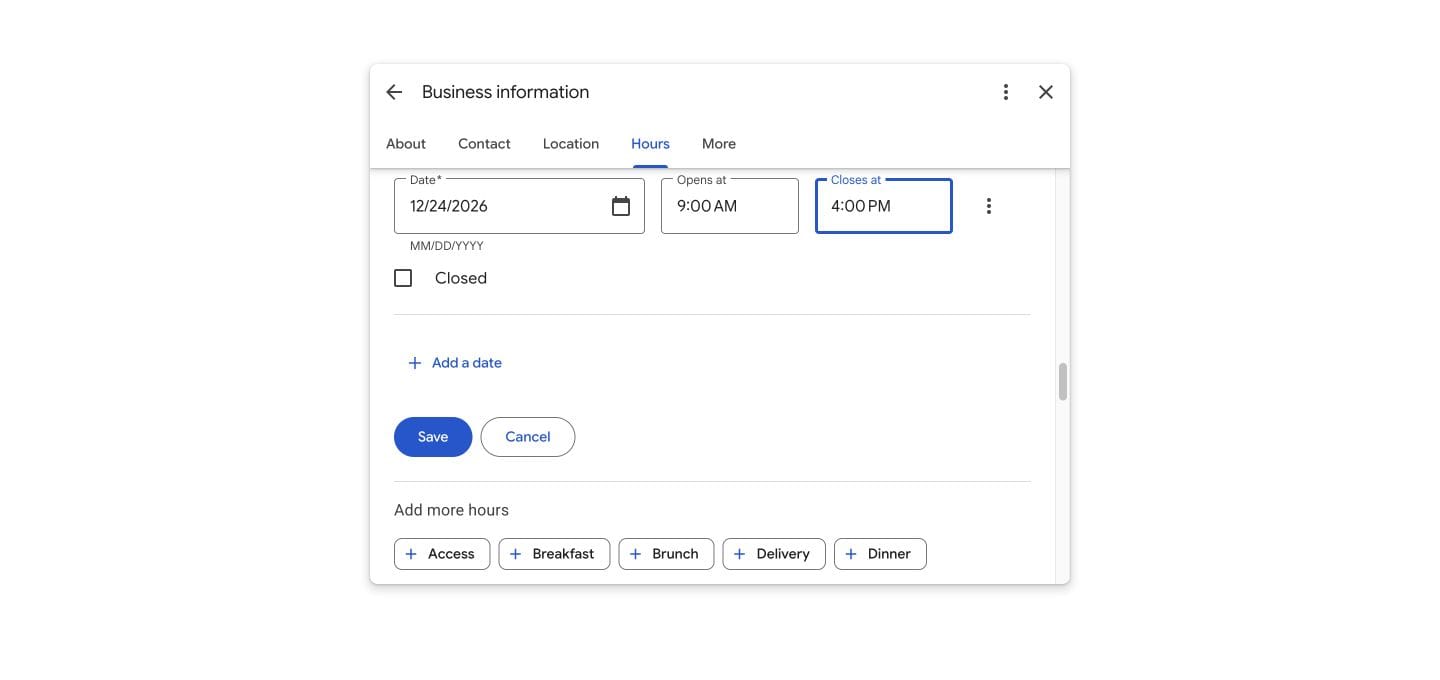
For an open day, leave Closed unchecked and choose the relevant times. The screenshot below demonstrates December 24, 2026, from 9 a.m. to 4 p.m.
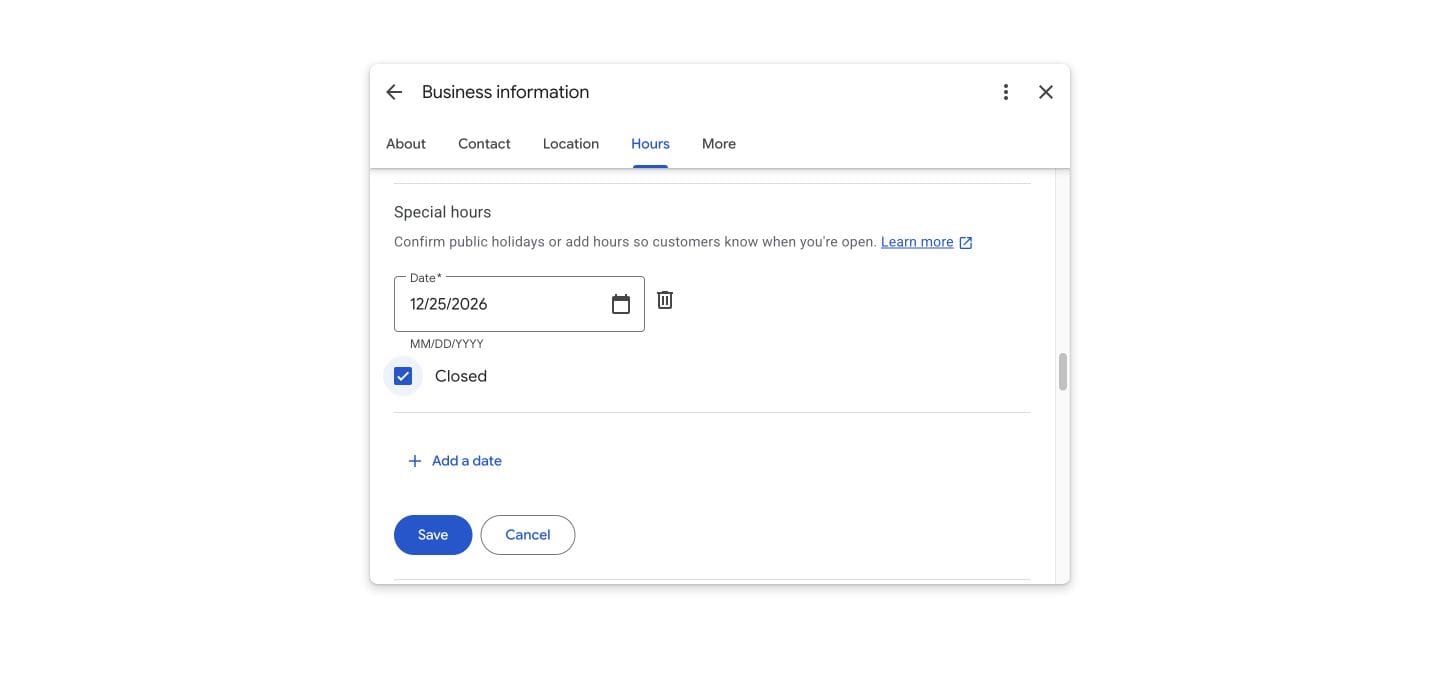
For an all-day closure, select Closed for that date.
5. Save approved hours and verify the result
Review the dates against the approved schedule before selecting Save. Reopen the editor to confirm the entries, then inspect the customer-facing profile on Search and Maps for the relevant date where available. Keep a screenshot and the time of your check.
If a future exception is not yet visible publicly, record that limitation and check closer to the date. Do not describe a dashboard entry as publicly verified without seeing the matching information.
A realistic Christmas Eve example
Illustrative scenario: A shop normally opens from 9 a.m. to 8 p.m. on Thursdays, but its manager approves a 4 p.m. closing time for Thursday, December 24, 2026.
The website banner says 4 p.m., while the profile still has only the normal Thursday schedule. A customer checking one channel gets a different expectation from someone checking the other.
The appropriate action is to enter December 24 as a date-specific exception, confirm the 9 a.m.–4 p.m. window and align the website, booking arrangements and other important listings. If Christmas Day is also closed, enter that separately.
The acceptance criterion is concrete: the approved date and hours match the saved entry and the customer-facing information that can be checked. A reduction in complaints, calls or lost sales would require actual evidence. None is claimed for this example.
Split hours, service schedules and longer closures
For a midday break, enter separate opening periods. For example, a restaurant serving from 11 a.m.–2 p.m. and 5–9 p.m. should represent the gap between services.
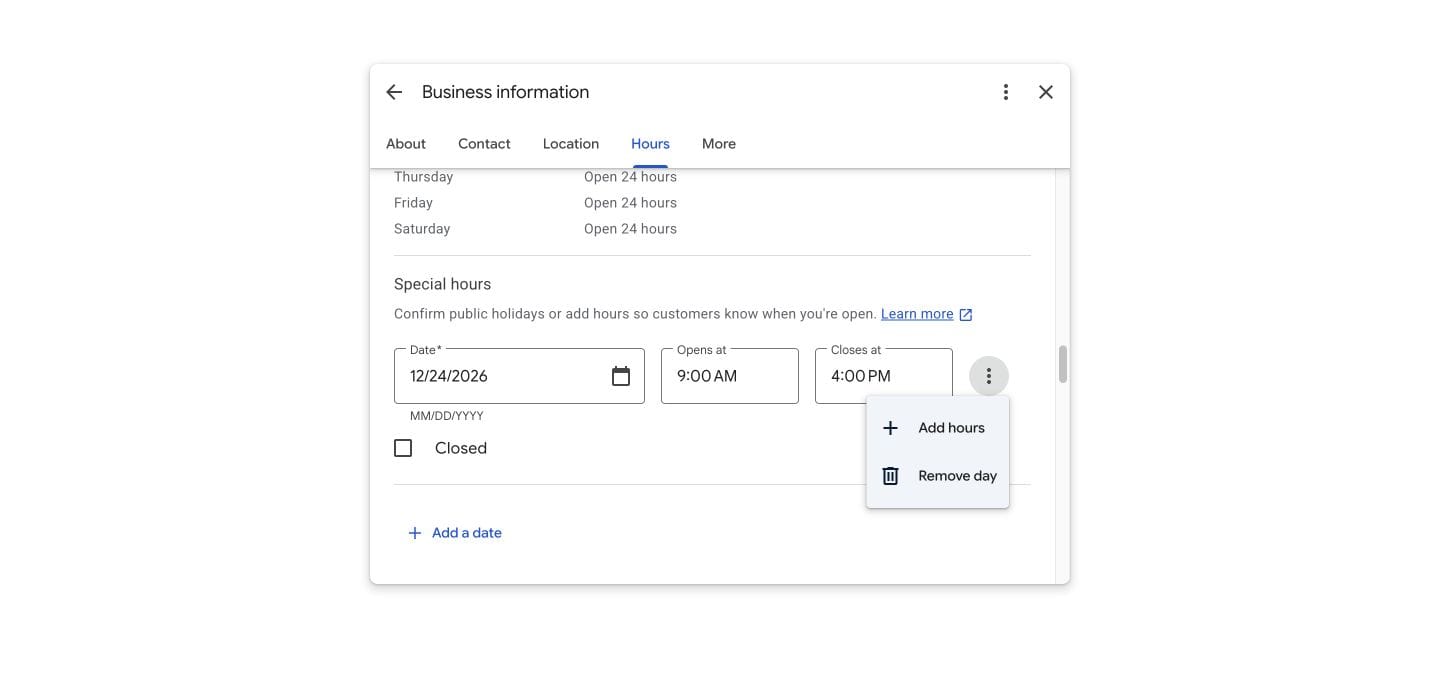
In the editor we inspected, Hours options → Add hours became available after we replaced 24 hours with specific times. If Add hours is greyed out, check that setting first.
Use More hours for an eligible service with a different timetable, such as pickup or delivery. It is a separate feature with its own Google instructions.
For closures of up to six consecutive days, Google’s Special hours guidance supports date-specific closures. For more than seven days, an indefinite closure or an off-season shutdown, consult its temporary-closure guidance.
Exactly seven days needs a fresh check: the Special hours page says to use Temporarily closed for seven or more days, while the closure page directs businesses closed for seven days or less to Special hours. The pages differ at that boundary. Review current guidance or ask Business Profile support before choosing a status for a seven-day shutdown.
For appointment-only businesses, check Google’s business-hours guidelines. They identify businesses operating only by appointment among those that should not provide conventional hours. Staff answering messages does not, by itself, establish walk-in availability.
If holiday hours are missing or look wrong
Work through the checks in this order:
- Account and location: are you editing the correct profile through an authorised account?
- Saved values: reopen the date and compare it with the approved schedule, including the year and AM/PM.
- Main-hours setting: Google says Special hours require Open with main hours to display. Follow the hours guidelines for your business type before changing this.
- Edit status: check for pending or rejected profile edits. Google explains that profile edits are reviewed in its editing guidance.
- Other editors: check whether another manager or connected listing service has submitted a different schedule.
- Evidence: record the expected hours, submitted values, public display and timestamps before contacting support.
Our own screenshot session encountered a blank embedded editor on Search. The same profile editor loaded as a separate page. That was an interface issue during this demonstration; it was not evidence of an hours rejection or a public listing error.
Use a location-by-location holiday-hours worksheet
Keep one record for each location and affected date. Copy the following worksheet fields into your location checklist, then record the approved values and verification evidence:
| Record | What to confirm |
|---|---|
| Location and date | Correct branch, year and local time zone |
| Approved schedule | Closed, one opening period or split periods |
| Approval | Responsible person and confirmation date |
| Google entry | Submitted values, edit status and editor check |
| Customer channels | Website, booking or ordering system, Apple Maps and relevant directories |
| Verification | Public check, timestamp and evidence location |
| Follow-up | Last-minute changes and post-holiday review |
Prioritise channels that customers actually use. For a restaurant, that may mean reservations and ordering. For a clinic, it may mean the appointment calendar and location page. The approved schedule should come from the business, rather than whichever directory was updated most recently.
If Apple Maps is part of that journey, our Apple Maps business-listing guide explains how to manage that separate listing.
Do holiday hours improve local SEO?
Accurate hours help customers decide when to visit or contact a business. Google recommends keeping business information complete and accurate, including special hours, in its local ranking guidance.
That does not establish a guaranteed ranking gain from a holiday-hours edit. Judge this task first by whether customers receive the correct information. Use separate evidence to assess visibility or enquiry changes.
For a broader review of your profile, location pages and local search presence, explore SERP Radius’s local SEO services or contact us about your business.