
Website not showing up on Google? First establish what is missing: one page, your entire website or visibility for a particular service search. Each situation calls for a different investigation.
Start with a URL you expect customers to find. Check its indexing status, then assess whether the page answers the search you want to attract. This sequence helps you avoid rewriting content when the immediate problem is a technical restriction.
Check the exact page in Search Console
Open the correct Search Console property and enter the full page URL in the inspection bar. Use the final URL customers should reach, including the correct hostname and path.
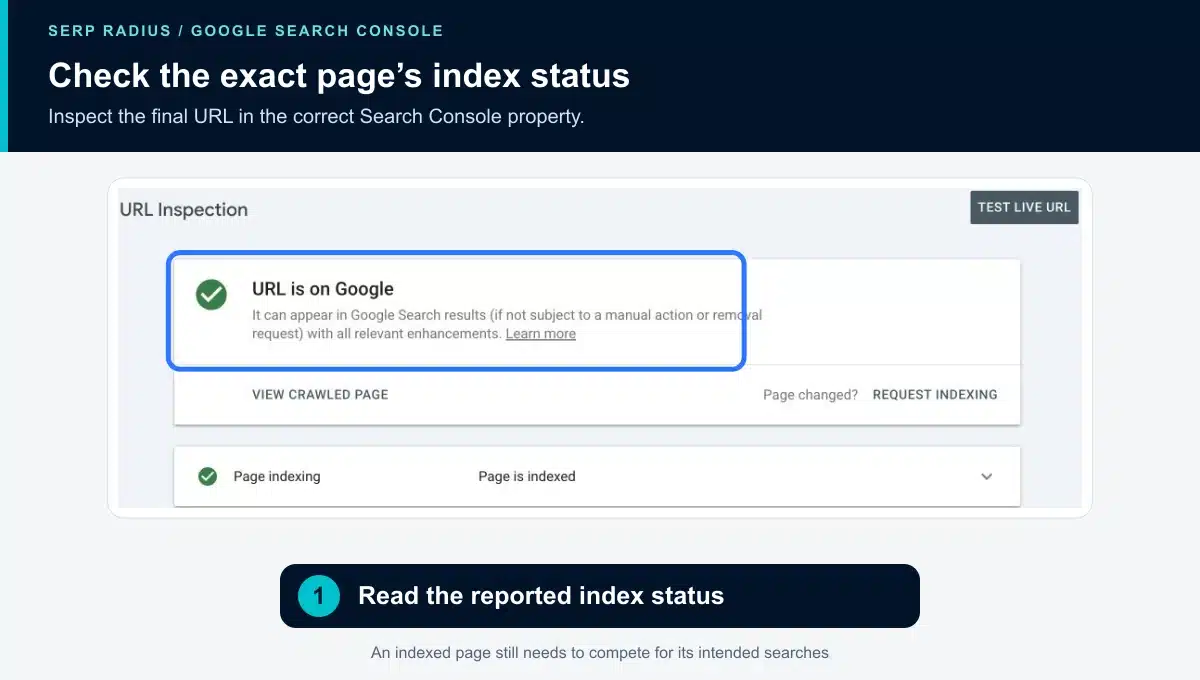
The example is indexed. Use your own result to decide which investigation comes next.
If the report says the URL is on Google, it has indexed information about the page. That status does not guarantee visibility for every keyword. If the URL is not on Google, read the specific explanation before making changes.
Separate an indexing problem from a ranking problem
| What you find | Where to focus |
|---|---|
| A page is blocked from indexing | Identify the directive and confirm whether it is intentional. |
| A URL redirects | Check the intended destination and inspect that page. |
| Google selected another canonical | Establish whether the inspected URL is a duplicate or should have a distinct purpose. |
| The intended page is indexed but absent for a service query | Review search intent, page relevance and the competing results. |
An indexed homepage does not prove every service page is indexed. Test the pages that matter to your business rather than relying on one sitewide assumption.
Check whether a recent launch introduced restrictions
Ask your developer what changed during launch. A staging restriction, changed URL, removed service page or broken navigation can affect a previously working discovery path.
Review the important URLs against a pre-launch list. If an old page moved, check that it leads to a relevant replacement. Inspect internal links as well: customers should reach the final page through the website’s own navigation.
Avoid removing every restriction automatically. Login pages, internal search results and staging environments may need to stay out of search. The objective is to make the right public pages accessible.
If the page is indexed, review the search it should answer
Search for the service and location you want to compete for. Look at the types of pages appearing and the decisions they help a customer make.
Your page should clearly explain the service, who it is for, where it is available and how to enquire. A broad article may be useful for research while a customer looking to hire needs a service page with a clear offer.
Make improvements around a specific gap. Adding more words or repeating the city name does not resolve a mismatch between the query and the page’s purpose.
Help Google discover important pages
Link to new service pages from relevant existing pages and include appropriate public URLs in your sitemap. After fixing a material issue, consider an indexing request for the affected URL. A request does not guarantee inclusion or a particular completion time.
For detailed status checks, our existing Search Console reporting guide explains why a warning needs interpretation before action.
Prioritise the pages connected with enquiries
Begin with your homepage, core services and important location pages. Record the status, supporting evidence and next action for each. This produces a focused repair plan instead of a long list of speculative changes.
If you need help separating technical barriers from competitive gaps, request a technical SEO consultation. SERP Radius can review the pages that matter and prioritise the work needed to improve discovery and relevance.
Google’s guide to missing pages in search provides the official troubleshooting sequence.