
Google Business Profile Performance shows how people discover and interact with your business on Google Search and Maps. To use it well, start with a consistent reporting period, review the individual actions and connect those signals with the enquiries your business receives.
This guide walks through the report using SERP Radius’s profile. You will learn where to find the data, what the main metrics measure and how to choose a useful next action.
How to access Google Business Profile Performance
Sign in to the Google account that manages your verified Business Profile. Search for your business name, confirm you have the correct listing and select Performance in the management controls.
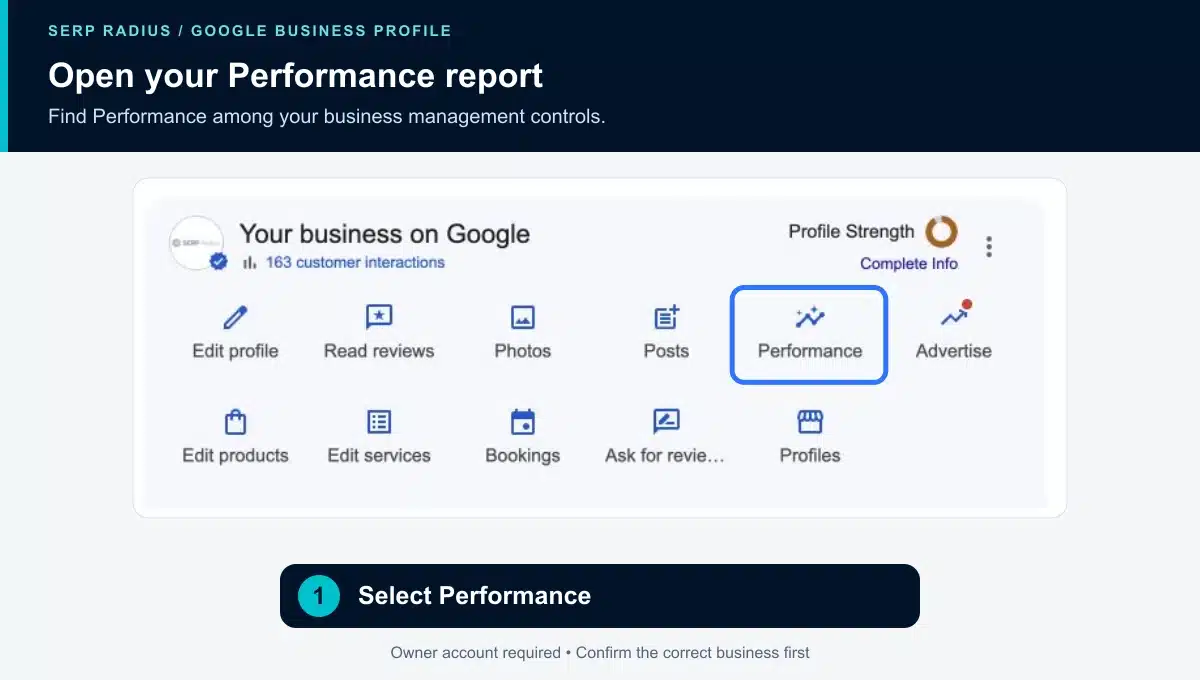
Select Performance from the controls available to profile owners and managers.
If you manage multiple locations, review each profile separately before combining the figures. A total across several branches can hide a problem at one location.
Choose a reporting period you can compare fairly
Open Time period, select your start and end months, then choose Apply. For a single-month report, the interface shown below lets you select the same month twice.
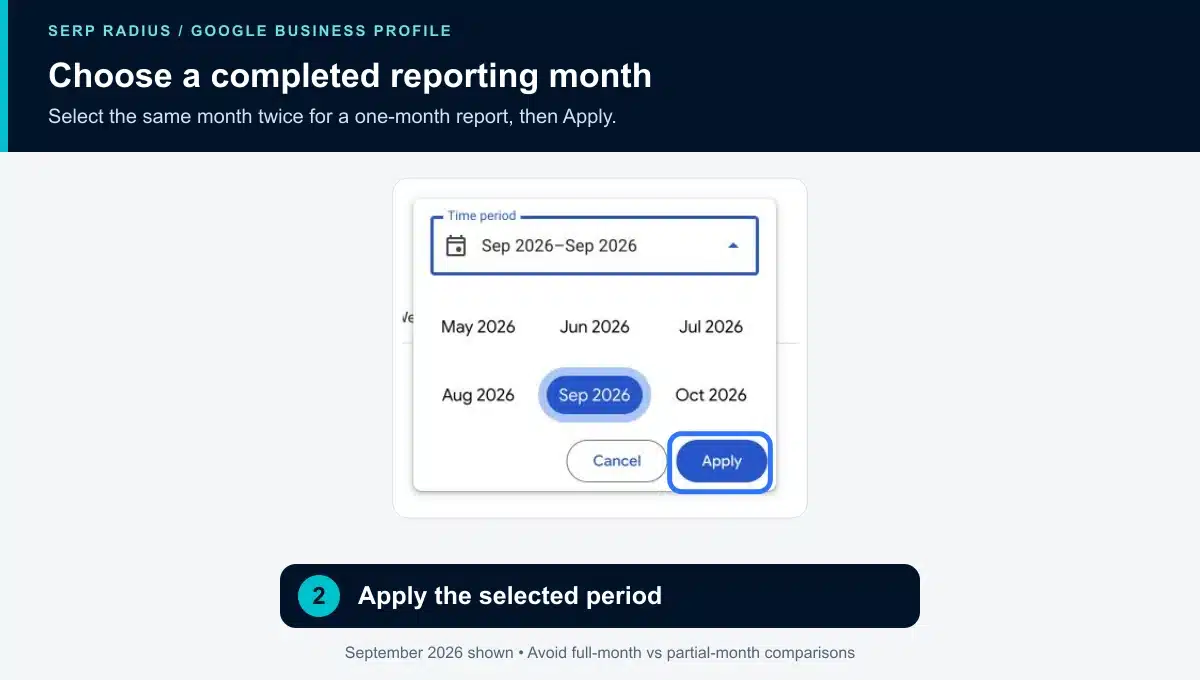
Apply your date range and allow the report to refresh before recording the figures.
Use completed months for routine reporting. If you review the current month, label it as a partial period so it is not mistaken for a full month of activity.
Read the comparison label beside any percentage change. In the example below, Google compares the selected month with the same month a year earlier. A change in that figure does not describe performance against the immediately preceding month.
Keep a note of advertising changes, seasonal demand, closures and changes to your services. Those details help you investigate movement without assuming every increase or decline came from SEO work.
What Business Profile interactions tell you
The Overview brings reported interactions together. Use it to identify movement worth investigating, then check the individual action tabs.
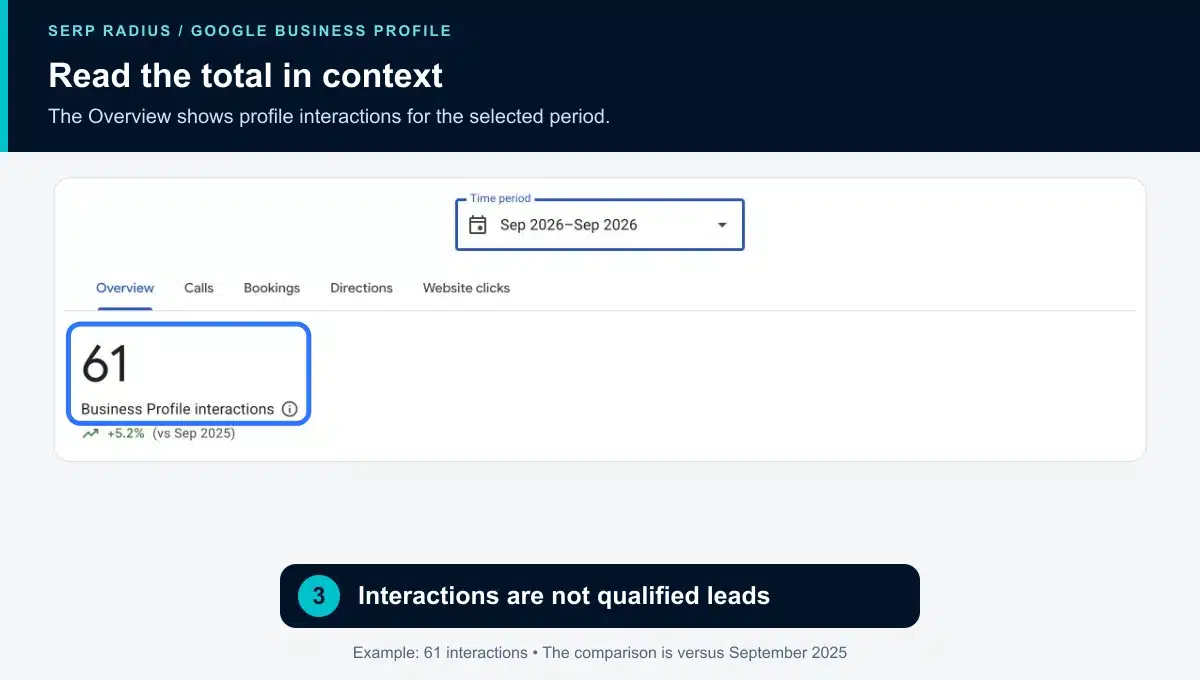
Read the interaction total alongside the date range and comparison label.
The example shows 61 interactions. To assess their business value, you need to understand the action mix and compare it with actual enquiries. An interaction does not establish that someone became a customer.
Google states that Performance can include organic and Google Ads activity. Check what marketing was running before attributing the report’s movement entirely to local SEO.
How to interpret calls and website clicks
Calls: investigate contact activity
The Calls metric counts clicks on the profile’s call button. It does not confirm that a conversation took place.
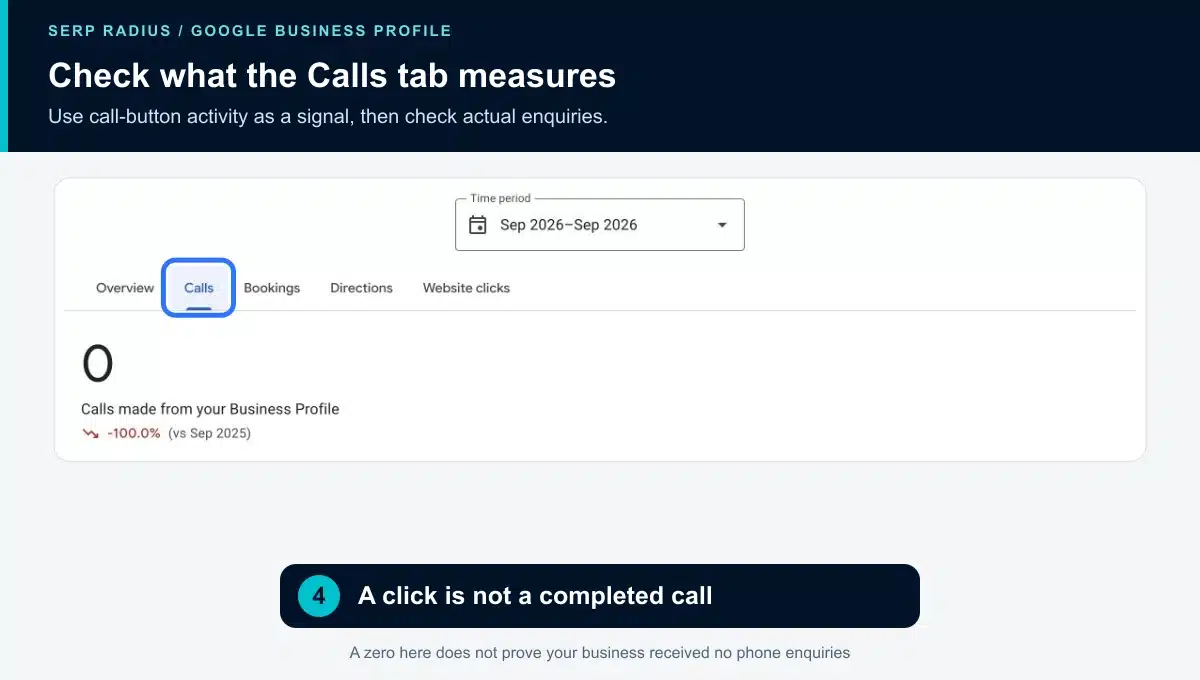
Compare call-button activity with answered calls and qualified enquiries.
If this figure falls, first check the selected period and whether your contact information or customer contact routes changed. Then review your call records. Customers may contact you after finding your number elsewhere, so this tab is only one part of the picture.
For a service business, the useful follow-up is whether relevant callers reached someone who could help them. Where your records support it, track answered enquiries and their outcomes separately.
Website clicks: inspect the journey after the click
Website clicks counts clicks on the website link in your profile. The example below shows six.
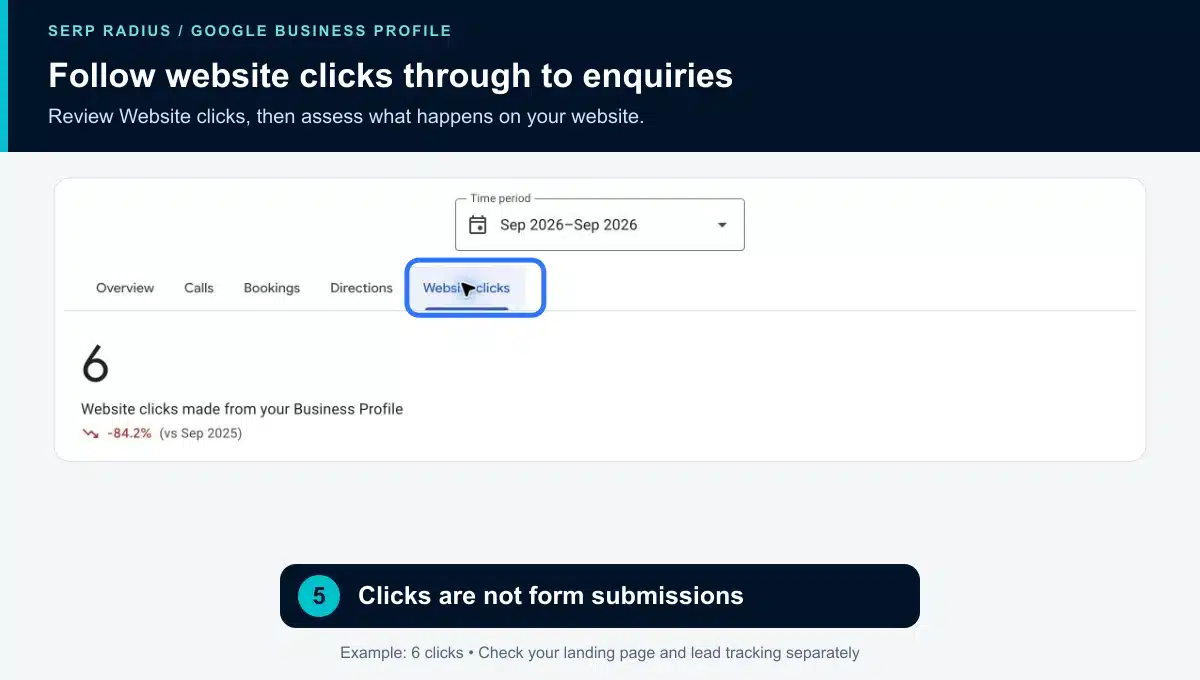
Use the website-click figure to begin reviewing the destination page and enquiry journey.
Open the linked page on a phone. Check that it explains the service clearly, serves the right location and makes the next step easy to find. Test whether a genuine enquiry reaches the business, and check that your analytics records the intended action.
A small number of clicks is a limited basis for judging conversion performance. Combine the report with website data and enquiry records before deciding whether to change the page, the offer or your measurement setup.
Use search terms to understand discovery
In Overview, scroll to Searches breakdown. Review the available queries and retain any thresholds shown beside them.
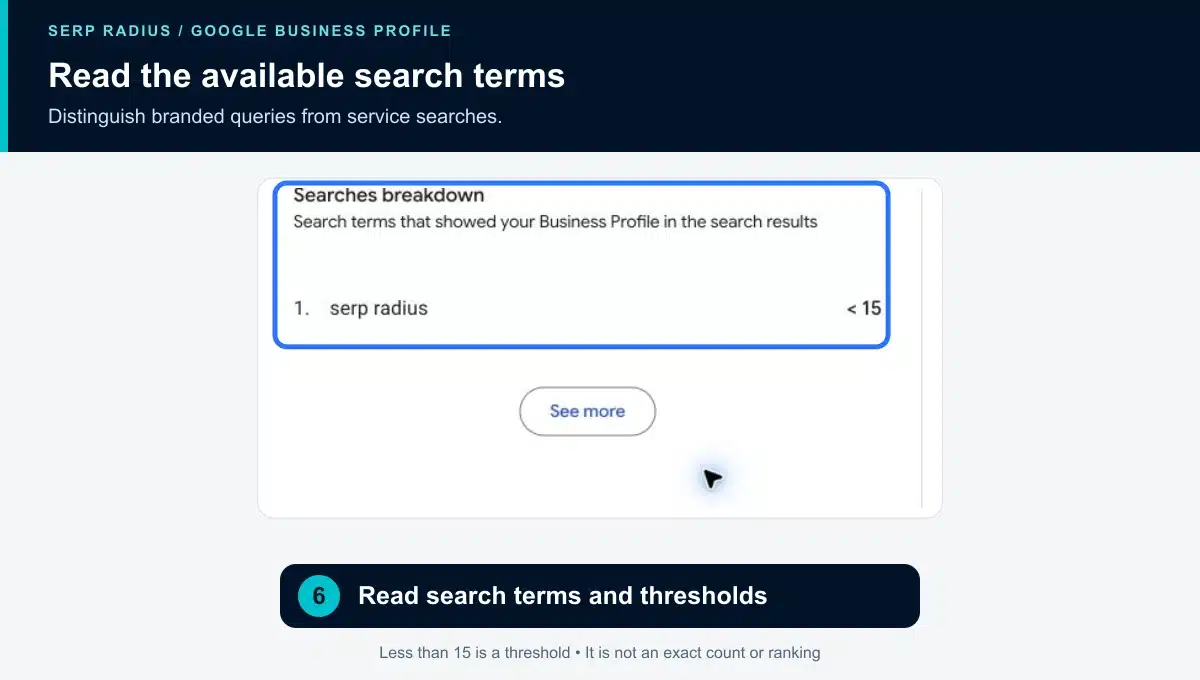
The “less than 15” label is a threshold, not an exact count.
Separate searches containing your business name from searches describing a service. Someone searching for your name may already know you; someone searching for a service may still be choosing a provider.
Use relevant service queries to focus your local SEO audit. Does your profile accurately describe that service? Does the website give the searcher a suitable destination? Avoid adding services you do not provide simply because a term appears in the report.
The query list does not establish a fixed Google Maps ranking. If position is the question, assess the relevant search and location separately.
Decide what to investigate next
Use the following patterns to choose a check, rather than treating the report as a diagnosis on its own.
| Pattern you notice | Useful next check |
|---|---|
| Interactions rise but qualified enquiries stay flat | Review which actions increased and reconcile them with enquiry records. |
| Website clicks rise but form enquiries do not | Test the landing page, form delivery and conversion measurement. |
| Call-button activity falls | Check the reporting period, contact details and actual call records. |
| Most visible queries contain your business name | Assess service-query visibility separately before expanding the content plan. |
Google shows metrics according to what applies to the business. Keep unavailable data separate from a reported zero when preparing your monthly notes.
Build a monthly review around enquiries
Record the period, the available discovery and interaction figures, qualified enquiries and one priority for the next review. Keep the definition of a qualified enquiry consistent so the business outcome is comparable over time.
At SERP Radius, local SEO planning connects profile visibility, service-page relevance and the enquiry journey. If your reporting shows activity but leaves you unsure what to improve, request a local SEO consultation. We can review the evidence and identify which work deserves priority.
For metric definitions and availability, see Google’s Business Profile Performance guidance.
To compare profile activity with website sessions, learn how to check organic traffic in GA4.